

Bongo 2
by McNeel, Rendering & immersion
Animation inside Rhino, for presentation videos of moving models
Motion for Rhino models, without another program
Bongo 2 brings animation into Rhino for Windows: you set up motion with keyframes, watch it live in the viewport and output it to video with a compatible renderer.
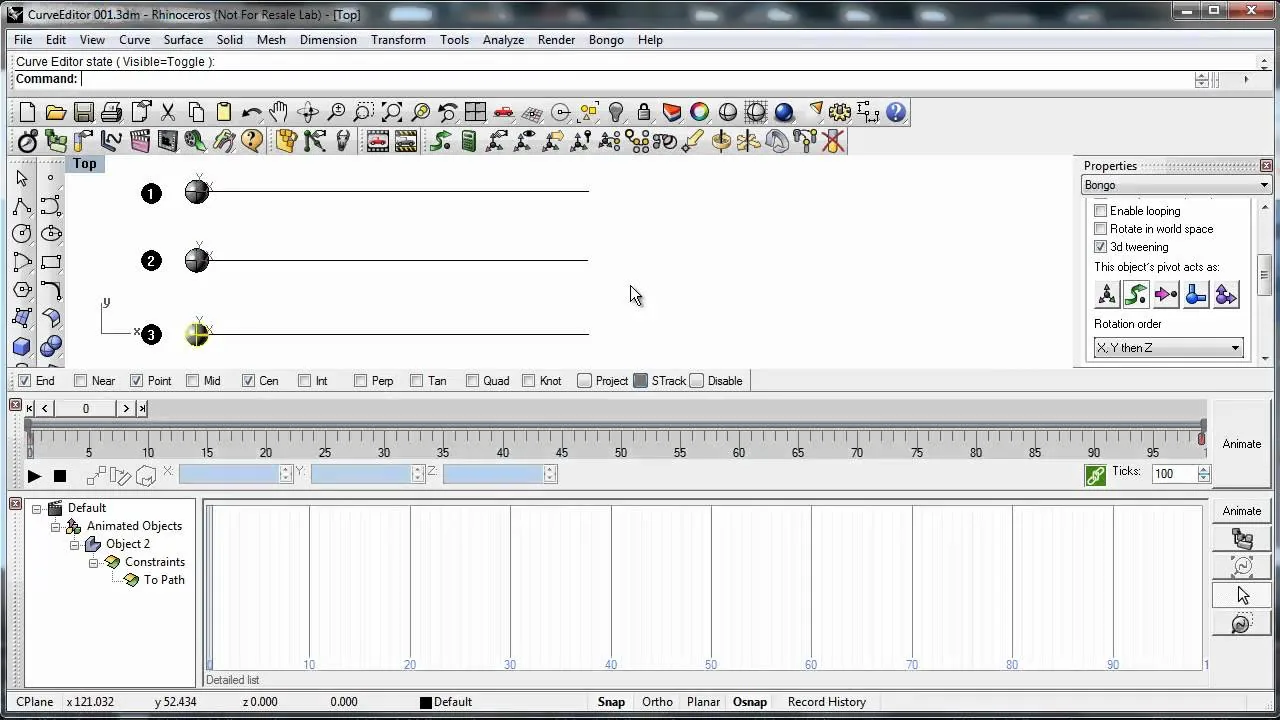
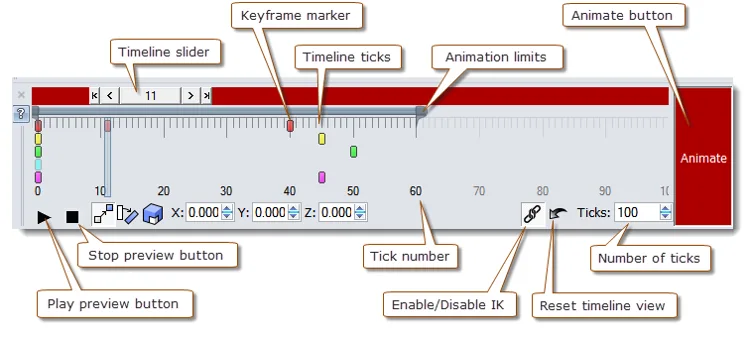
A tick-based timeline and a curve editor
Motion is organised on a zoomable timeline, and its speed is adjusted graphically in the curve editor.
- Time is measured in ticks rather than frames, so the frame rate and length of the final video are easy to change
- Keyframes are colour-coded by type: object, view, document, layer, light and render material
- In the curve editor you drag handles to speed up or slow down a movement
- One file can hold more than one animation set


IK chains for mechanical systems
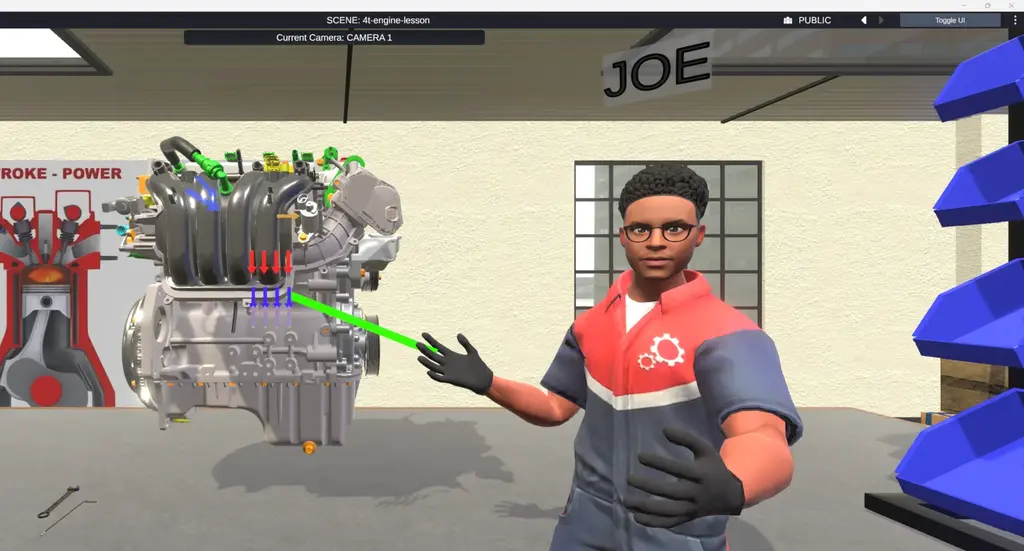
With inverse kinematics, Bongo 2 works out by itself how the linked parts of a mechanism move, so that a goal point stays where you placed it.
- Hinge, universal, telescopic and rubberband joints set which movement each part is allowed
- The goal marks where the chain calculation stops
- Separate error tolerances for translation, rotation and scaling
- With precalculation, the pose at each tick is always the same, however you move the slider

Changing shape through control points
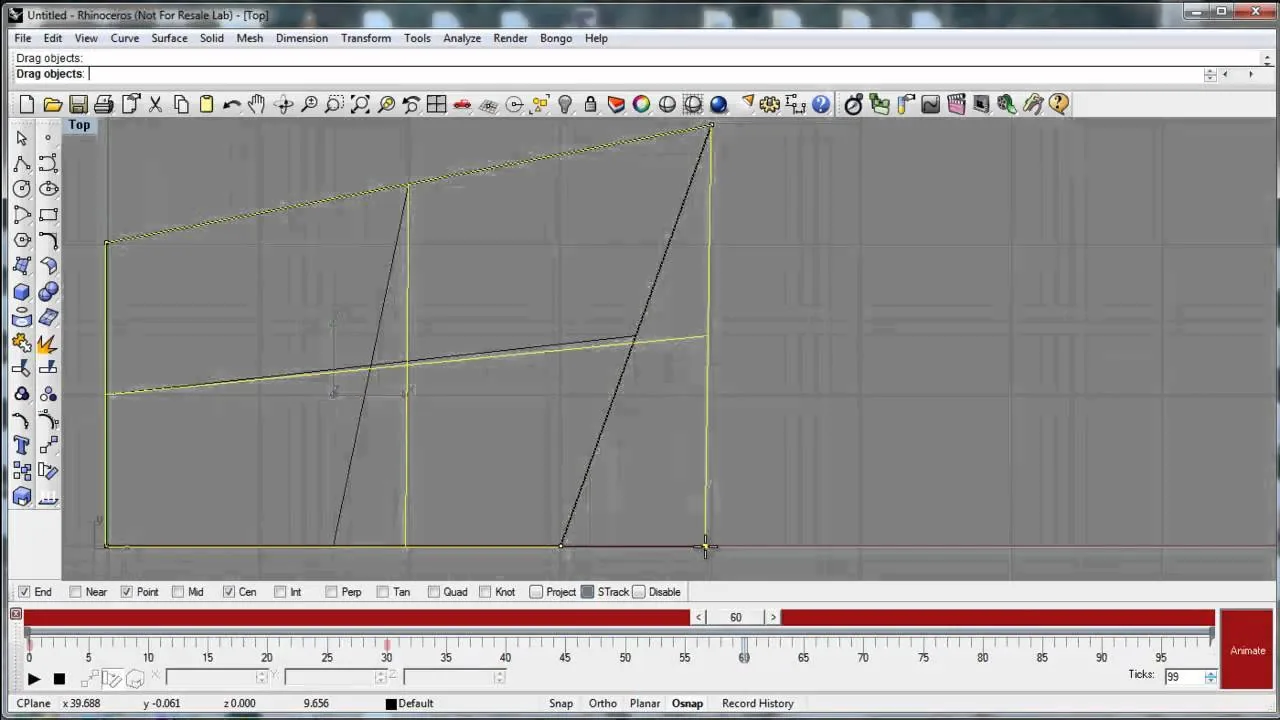
By moving an object's control points at different ticks, you get a smooth transition from one shape to another.
- Press Animate, select the object and drag control points at the tick you want
- The in-between positions are calculated automatically
- It does not apply to trimmed surfaces
- Layer visibility and video textures can be animated too


Walkthroughs from named views and sun motion
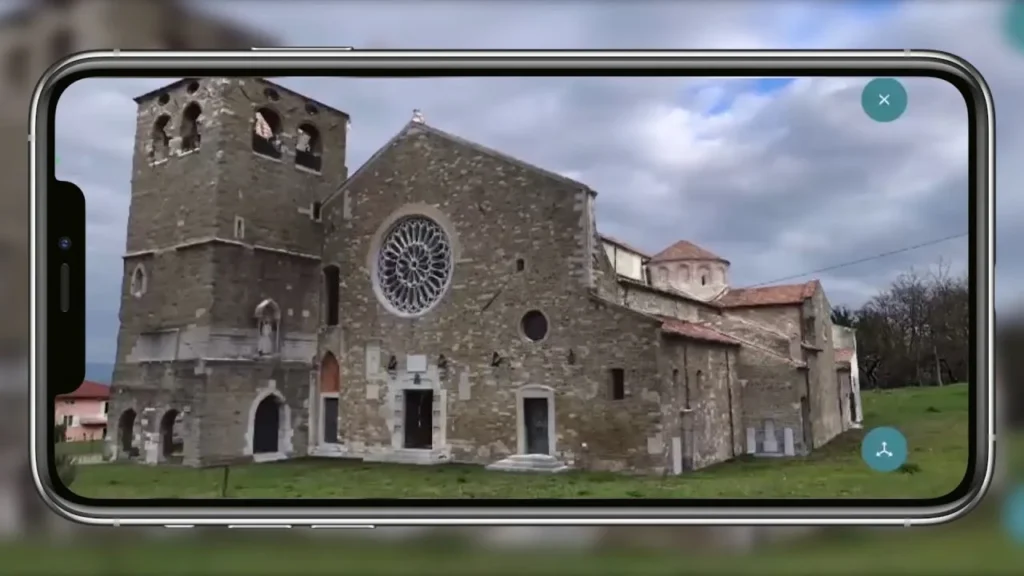
For buildings and spaces, Bongo 2 builds a walkthrough from Rhino's saved views and moves the sun so you can see how light and shadow fall.
- The Named Views wizard puts the views in order, pausing at each for the number of ticks you set
- The walkthrough goes into a new animation set or the current one
- With Animate on, every change in Rhino's Sun panel is recorded as a keyframe
- Preview runs inside Rhino in real time, in whatever display mode you work in
Works with: Rhino Render V-Ray for Rhino Octane Flamingo nXt 5 Brazil 2.0 Penguin

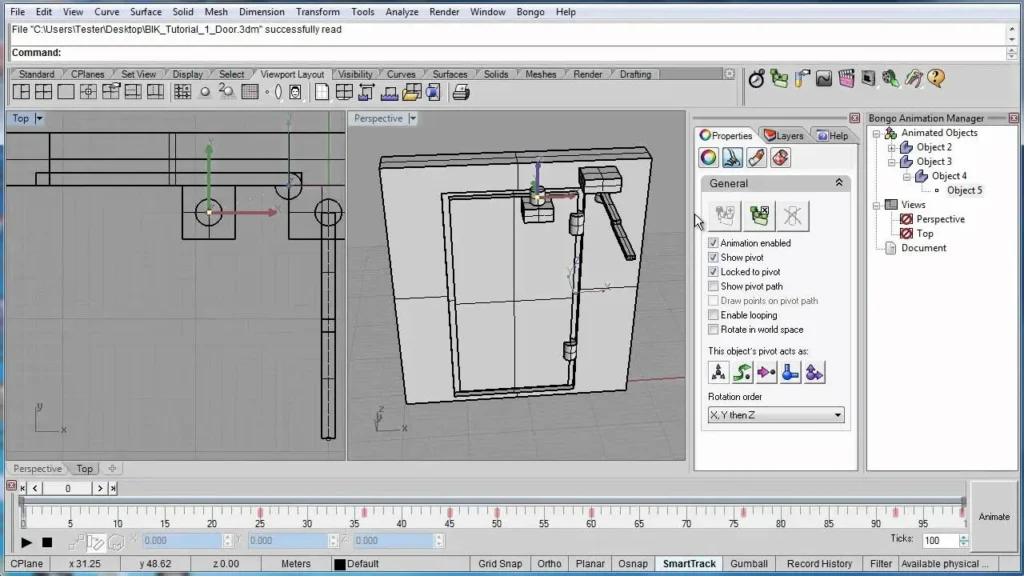
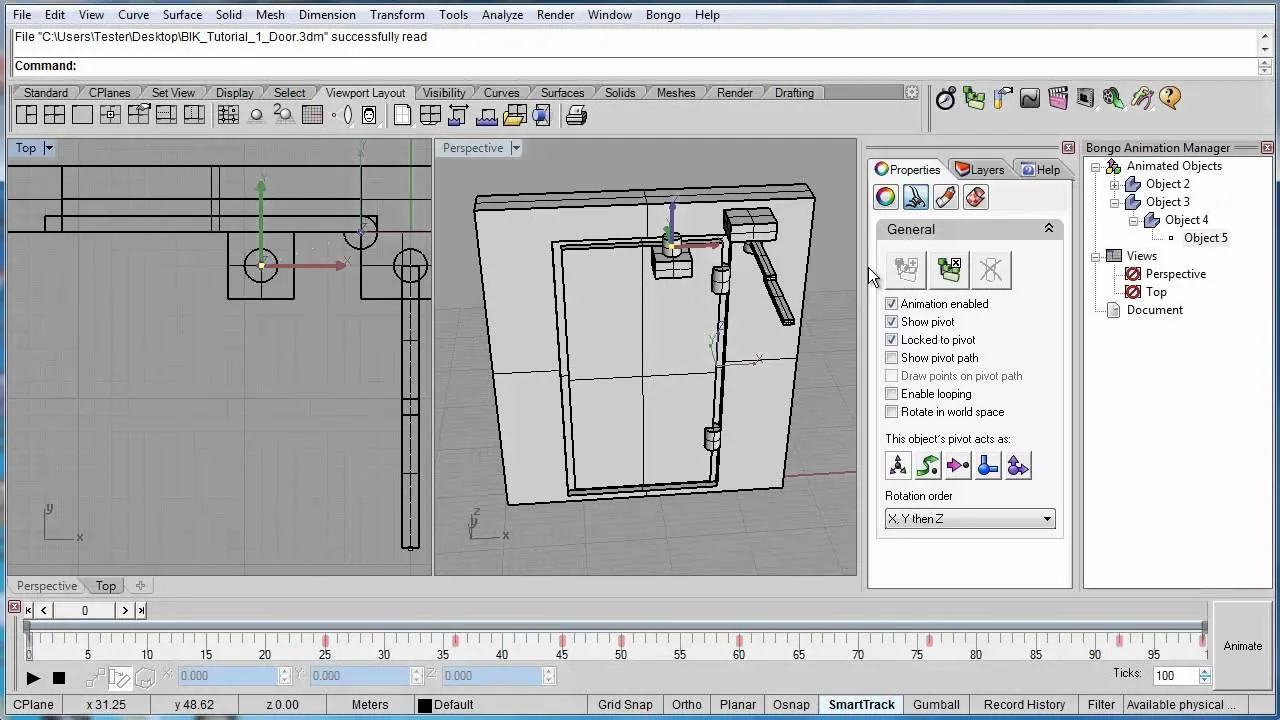
A robot arm with IK in Bongo 2
Tutorial from the Bongo channel: a jointed arm moves using inverse kinematics.

See it in action
The video or demo loads only when you press play.
What it does, stage by stage
Bongo 2 adds animation to Rhino for Windows. You build motion with keyframes on a zoomable timeline, adjust its speed in the curve editor and watch the result live inside Rhino, in whatever display mode you work in.
For mechanical systems there is an inverse kinematics (IK) engine with joints and goal points. Expressions, object morphing through control points, animated layer visibility, sun and video textures are also supported, as well as walkthroughs from named views for architectural projects.
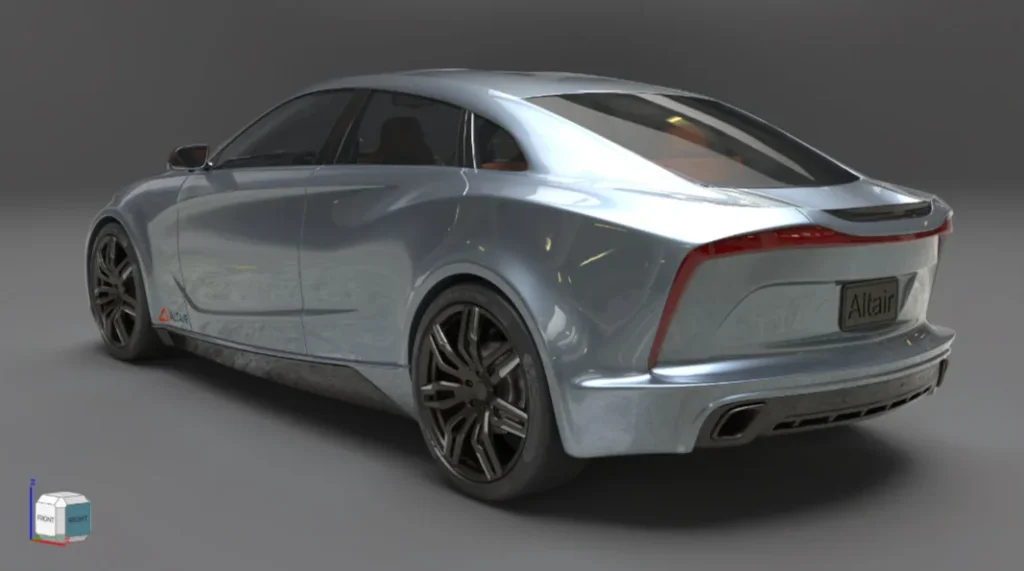
The final video is rendered with a compatible engine such as Rhino Render, V-Ray for Rhino or Octane.
Features
Features
- Type
- animation for Rhino
- Timeline
- yes
- IK
- yes
- Video textures
- yes
- Compatible Rhino
- 6, 7, 8 and 9 for Windows
System requirements
- Rhino for Windows: the Bongo 2 page lists support for Rhino 6, 7, 8 and 9
- Dark mode in Rhino 8 and 9 is not supported
Works well with, and alternatives
Works well with

Alternatives

Bongo 2 next to alternatives
Open the full comparisonQuestions, licence and delivery
Which renderers work with Bongo 2?
The manufacturer lists Rhino Render (all features), Octane and V-Ray for Rhino, plus the older Brazil 2.0, Flamingo nXt, Flamingo nXt 5 and Penguin.
Does it run on Mac?
The product page mentions Rhino for Windows only.
How do I receive the licence?
After payment we order the licence from the manufacturer and email you its details.
Do the prices include VAT?
Prices exclude VAT. With a valid VAT number from another EU country, VAT is not charged; in Belgium it is charged at 21%. For private customers, VAT is calculated at checkout.